


Important information:
Am 10. April 2024 wurden das Kundenportal sowie der Web-Zugriff auf das Kartenkonto eingestellt. Bitte laden Sie die Swiss Bankers App herunter, um weiterhin uneingeschränkten Zugriff auf alle Dienste zu haben.
Are you a Swiss Bankers sales partner?
Hier geht es zum Partnerportal.
Need to book a train ticket quickly at the airport? A free Wi-Fi network appears in the list, you connect – and the payment page opens. But what if the hotspot doesn't actually belong to the airport? Fake Wi-Fi networks and fraudulent payment pages can put your data at risk. With a few simple precautions, you can avoid many of these risks without giving up public Wi-Fi while travelling.
 16.11.2026
 Miryana
‘Airport_Free_WiFi’ or ‘Airport_WiFi_Free’? Two networks with almost identical names – but only one belongs to the airport. People who want to get online quickly whilst travelling often don’t look too closely. This is exactly what fraudsters exploit.
These fake hotspots are designed to trick travellers into connecting to an unauthorised network. Criminals then use fake login pages to try and obtain personal details or card information.
There are three warning signs you should be aware of:
Suspicious Wi-Fi name: The network has a name that looks strikingly similar to the official hotspot.
Unusual login page: Instead of a Wi-Fi password, you are suddenly asked for bank login details or full card details.
Unexpected installation request: You are asked to install an unknown app or a security certificate in order to connect.
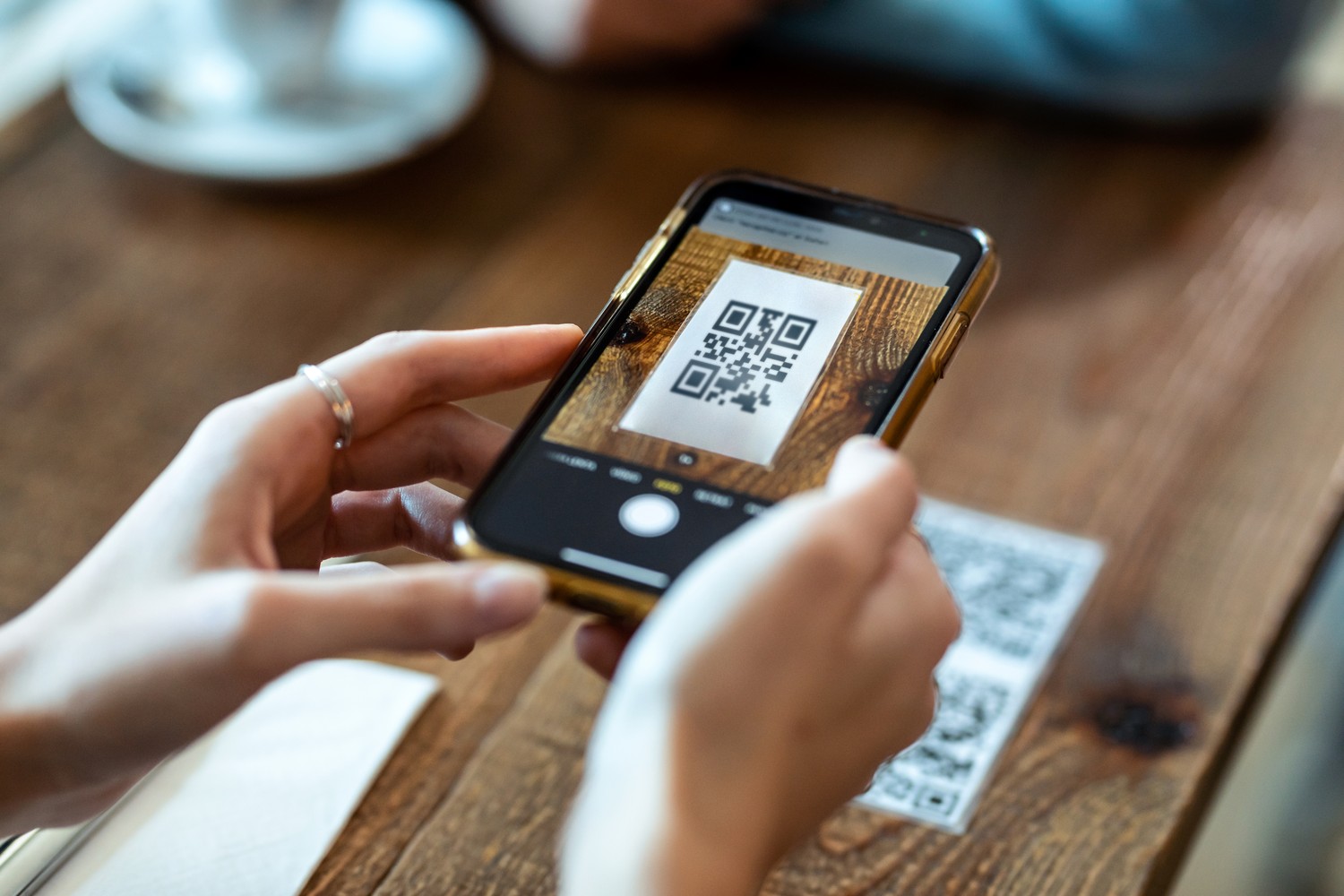
Be wary of QR codes too: In hotels, restaurants or car parks, QR codes often lead directly to a website. However, fraudsters can cover genuine codes with tampered stickers.
An example: You scan a QR code at a parking meter and are taken to a payment page that looks completely legitimate. There, you enter your card details without realising that the website does not actually belong to the official parking service.
Buying a museum ticket, booking a train journey or reserving a hotel room: such payments can also be made securely via public Wi-Fi, provided you use a trustworthy website or app with an encrypted connection.
For particularly sensitive transactions, you can alternatively switch off Wi-Fi and use your mobile data. Bear in mind any roaming charges that may apply when abroad.
These precautions will help when making online payments:
Use official websites and apps: Where possible, type in the provider’s address yourself rather than following unknown links.
Check the payment page: Make sure the web address is correct and cancel the transaction if your browser displays a security warning.
Check the payment details: Verify the amount and the merchant before confirming a payment.
Keep your devices up to date: Install security updates for your smartphone, browser and payment apps.
Methods that require online payments to be explicitly confirmed offer additional protection. Swiss Bankers uses Mastercard Identity Check for this purpose. If authorisation is required, confirm the payment directly in the Swiss Bankers app.
As well as secure internet connections, modern payment methods can also help to protect your card details.
Important: Neither digital wallets nor a VPN provide reliable protection against fraudulent websites. Even when using these methods, always check who you are paying and which websites you are sharing your personal information with.
Many smartphones and laptops automatically connect to networks they’ve recognised before. Whilst this is convenient, it can be undesirable when travelling.
With just a few settings, you can retain more control:
Disable automatic Wi-Fi connections: Choose public networks carefully.
Turn off file sharing: Disable unnecessary file and folder sharing when using an unfamiliar network.
Remove networks you no longer need: Have your device ‘forget’ public Wi-Fi networks after you’ve used them.
Have you used a suspicious Wi-Fi hotspot or entered your card details on a potentially fraudulent website? Not every connection to an unsecured network automatically leads to data misuse. However, if you have disclosed sensitive information, you should act quickly.
Here's what you should do:
Disconnect: Switch off Wi-Fi and switch to a trusted internet connection.
Change your passwords: If you’ve entered login details on a suspicious website, change them via the official website or app. If you use the same password elsewhere, change it there too.
Check and secure your card: Check your card transactions for any unfamiliar transactions or pending pre-authorisations. If you have disclosed your card details or suspect misuse, block your card immediately.
With Swiss Bankers, you can check your card transactions directly in the app and use the ‘Replace card’ function under ‘Card settings & PIN’. This will block your current card and initiate the replacement process. If you are unable to use the app or require a replacement card whilst abroad, please contact Swiss Bankers customer service.
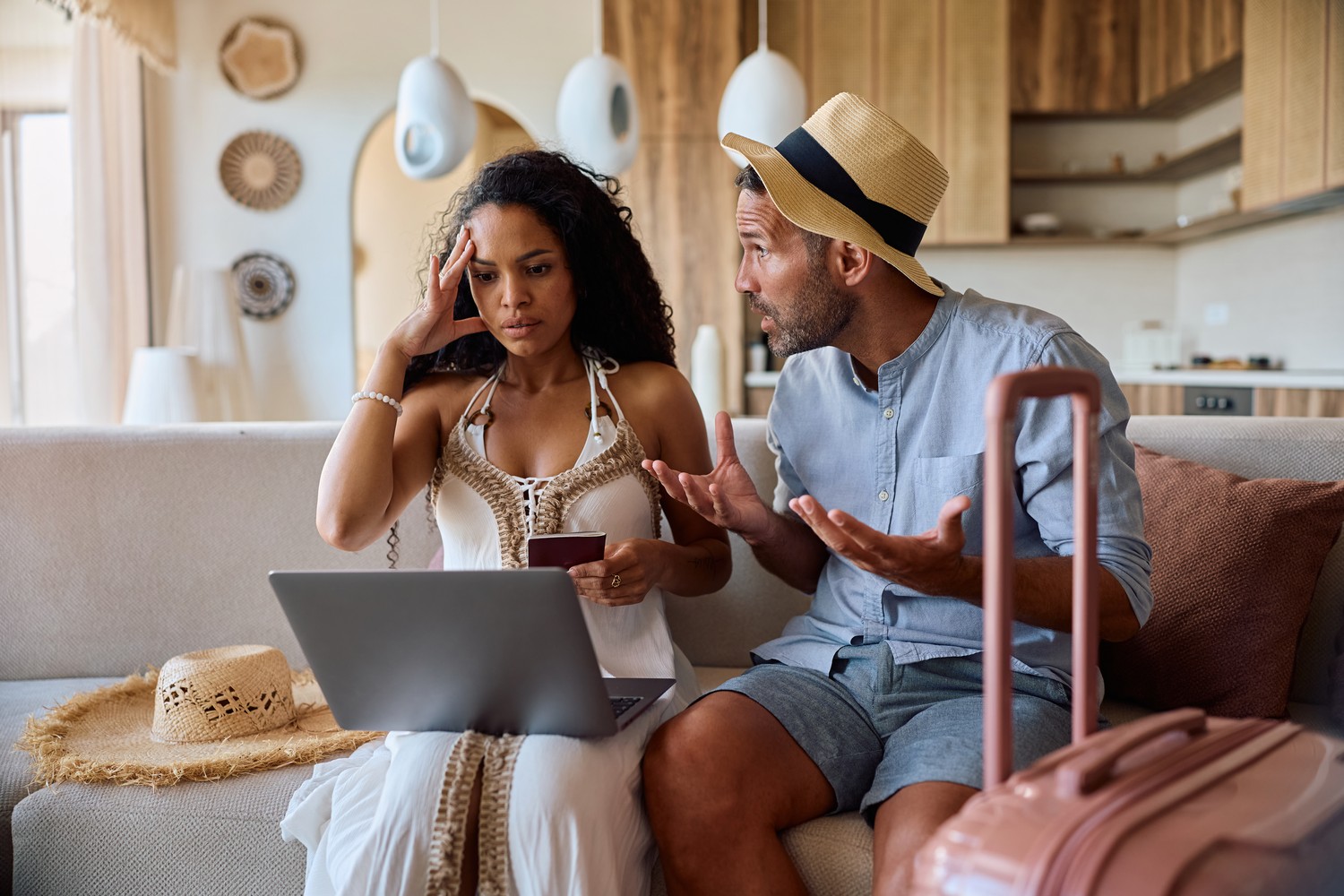
Public Wi-Fi isn’t inherently unsafe. Modern encryption already provides reliable protection for many online connections. The key is to connect to trustworthy networks and use the correct website when making payments.
So, the next time you book a ticket at the airport, check first: does the Wi-Fi actually belong to the airport – and is the address of the payment page correct?

© Swiss Bankers 2026


